You clone the site to test a redesign, a big update or a new payment gateway. Your host gives you staging.yoursite.com, you work there for a week and everything goes well. What you do not see is that the copy also took the Google Tag Manager container, the GA4 tag, the Google Ads conversions and the Meta pixel. And all of that still counts, even on a different domain.
We saw it in early November on the staging copy of a site we maintain with Orbitalia. Test visits went into its GA4, and every test that reached the thank-you page could fire the Google Ads conversion. Nobody had set anything up wrong: it is what happens by default when you copy a site.
Why a staging site counts in your analytics
GA4 does not filter by domain by default. If the tag is on the page, the visit is recorded, whether it comes from yoursite.com or staging.yoursite.com. Google Tag Manager does not tell them apart either: it fires its tags on any domain where the container loads.
The same goes for every other tag: the Meta pixel, Microsoft Clarity, Hotjar, the LinkedIn tag or the TikTok one.
What leaks from a test copy
- Fake visits in GA4. Your tests inflate sessions, skew the top pages and change the conversion rate.
- Fake conversions in Google Ads. If the conversion fires on the thank-you page, every test order counts as a sale, and automated bidding learns from data that is not real.
- Polluted remarketing audiences. The Meta pixel and remarketing tags add your team, and whoever helps you test, to your audiences.
- WooCommerce webhooks. A test order can reach your ERP, your invoicing software or your shipping service.
- Emails to real customers. If the copy has the real site's orders and users, any action that sends an email (a renewal, a status change, a stock alert) can reach a real customer.
- Google indexing the copy. If nobody set noindex, Google can find the staging site and end up with two copies of the same content.

Why turning plugins off on the copy is not enough
The first idea is to go into staging and deactivate the GTM plugin, remove the GA4 ID or turn email off. It works while the copy is a copy.
The problem comes when you push staging to production, which is exactly what it is for. Those changes live in the database and travel with it: the live site ends up without analytics, without the GTM code or without email, and nobody notices until someone looks at the reports weeks later.
What you need is to stop all of that at run time, while the copy is on a test domain, without changing any saved setting.
What to stop on a WordPress staging site
- Noindex on the whole site. Tick "Discourage search engines" in Settings → Reading and check that your SEO plugin also outputs
noindex. Better still with theX-Robots-Tag: noindex, nofollowheader, which also covers PDFs, feeds and sitemaps. - Analytics and ad tags. GTM, GA4, Google Ads, Meta and any other tag loaded by a plugin, by the theme or by a "header code" field.
- WooCommerce webhooks, if the shop sends orders to other software.
- Email, if the copy has real customer data. Sometimes you need to test forms: then the practical option is to send them all to one address of yours.
- A password on the copy, if your host allows it. It is the safest way to make sure nobody, neither Google nor a customer, sees the staging site.
If the data is already dirty, in GA4 you can see how much leaked with an exploration that uses the "Hostname" dimension.
Staging Guard: the plugin that does all of that
After what happened, we put together a piece we install on every staging copy of the sites we maintain. We have turned it into a free plugin: Staging Guard.
You install it on the copy and, by default, it:
- Sets noindex on the whole site, with Yoast, Rank Math or SEOPress too, and adds the
X-Robots-Tagheader to every response. It leaves robots.txt open on purpose: if Google cannot crawl the page, it cannot see the noindex either, and it may still index the address if someone links to it. - Stops the analytics: PixelYourSite, GTM4WP, Site Kit, MonsterInsights and Elementor Pro custom code. As a safety net, it removes from the HTML any GTM, Google Analytics, Google Ads, Meta, Clarity, Hotjar, LinkedIn, TikTok or Bing tag left in the theme.
- Pauses WooCommerce webhooks and pings to other sites.
- Shows a red STAGING label in the toolbar, so nobody confuses the copy with the live site.
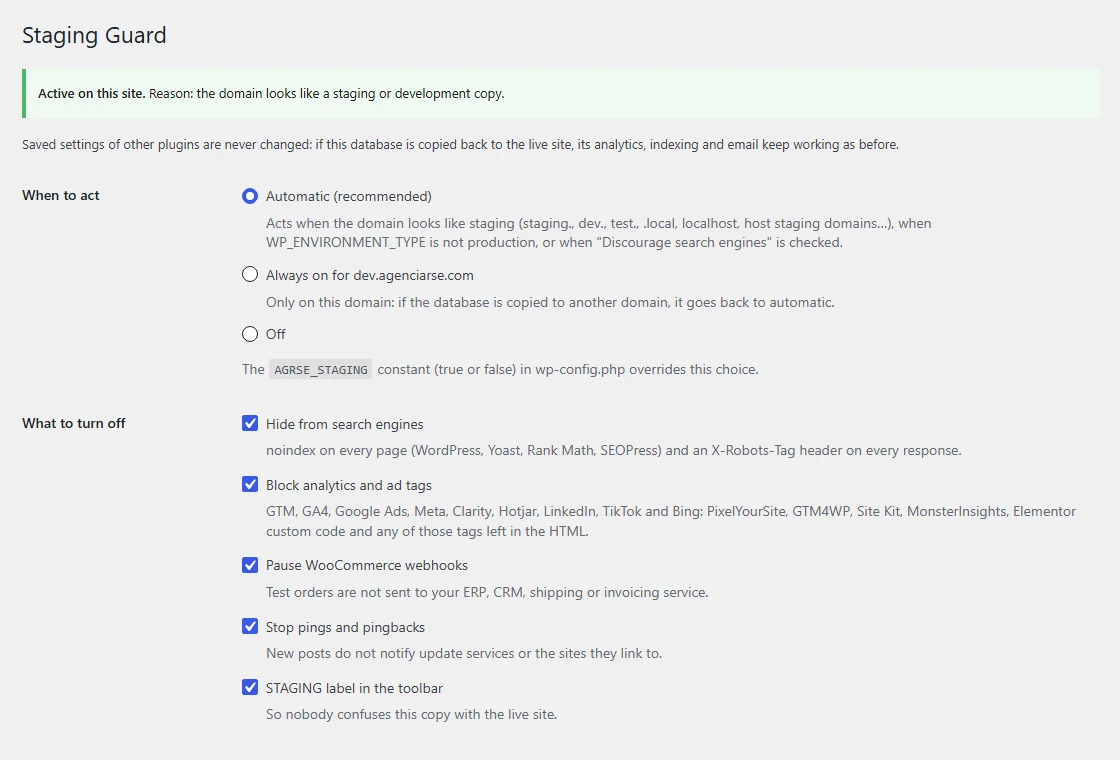
Email is off by default, because staging is often exactly where you test forms. One checkbox drops everything, or sends it all to a single address with the original recipient in the subject. Each feature has its own checkbox in Tools → Staging Guard, in case you need to test something specific.
What matters is what it does not do: it changes no settings of other plugins. Everything works with filters while the plugin is active. When you push staging to production, the live site has its analytics, indexing and email as they were.
And if the plugin reaches the live site still active, it does nothing. It only acts when the domain looks like a test copy (staging., dev., test., .local, hosts' staging domains), when WP_ENVIRONMENT_TYPE is not production or when "Discourage search engines" is ticked. On a domain that looks live, it stays idle and shows a warning so you can deactivate it.
How to check your staging site does not count
- The header.
curl -sI https://staging.yoursite.com/must returnX-Robots-Tag: noindex, nofollow. - The HTML. Look for
noindexin the source of any page. With Staging Guard you also get a comment saying how many tags it removed. - The browser's Network tab. This is the step people skip. Accept cookies and click or scroll before you look: plugins such as WP Rocket delay scripts until the first interaction, and if you look too early you see nothing even when the tag is there. After that, there must be no requests to
googletagmanager,google-analytics,facebookordoubleclick. - GA4's real-time report. Browse the staging site and check that you do not show up.
Run the same test on the live site as a control: there, those requests must appear.
In short
A cloned staging site is a copy of everything, including what measures and what notifies. Stopping it in the database means you have to remember to undo it when you go live; stopping it at run time, without touching anything saved, does not. If you work with WordPress copies often, download Staging Guard and install it on the next one. And if your site needs something no plugin does, we also build custom WordPress plugins.