If your site runs PHP 8.2 or older, you need to change version before 31 December. That leaves about five weeks: it is not an emergency for tomorrow, but it is not something to leave for the last weeks of the year either, especially if you sell online. On a shop it is a job to do calmly or to leave to your WordPress maintenance:
- PHP 8.2 stops receiving security fixes on 31 December 2026, and 8.1 and older no longer receive them (php.net schedule).
- Plugins are starting to require modern PHP. Contact Form 7 6.2 requires PHP 8.3 since October 2026, and WooCommerce 11.6, planned for February 2027, will require PHP 8.1 as a minimum.
When a plugin needs more PHP than you have, WordPress will not let you update it from the dashboard and shows the notice "There is a new version of… available, but it does not work with your version of PHP". On old PHP, besides losing security patches, you slowly lose plugin updates one by one.
You are not alone. According to the official WordPress.org statistics (checked on 25 October 2026), more than half of WordPress sites, around 57 %, are still on PHP 8.2 or lower.
This guide is for the planned branch change (for example, from 8.1 to 8.3 or 8.4). If what worries you is October's urgent security patch, we cover that in what to do about the 2026 PHP vulnerability. Here is the practical side, with more detail than usual on what changes if you run a WooCommerce shop.
Which PHP version to choose
- 8.3 as the reasonable minimum. It is what WordPress.org and WooCommerce recommend ("PHP version 8.3 or greater"). It receives security fixes until 31-12-2027.
- 8.4 if your plugins support it. Security fixes until 31-12-2028. WooCommerce says it is tested up to 8.4.
- 8.5 only if you have WordPress 6.9 or later and have tested your plugins well.
Before choosing, check your WordPress version. According to the official compatibility table:
Your WordPress | Compatible up to PHP |
|---|---|
6.9, 7.0 and 7.1 | 8.5 |
6.7 and 6.8 | 8.4 |
6.6 | 8.3 |
If your WordPress is older than 6.7, do not move it to PHP 8.4. If it is older than 6.9, do not move it to 8.5. The order is always the same: WordPress first, then PHP.
What breaks when you switch: a "notice" is not an "error"
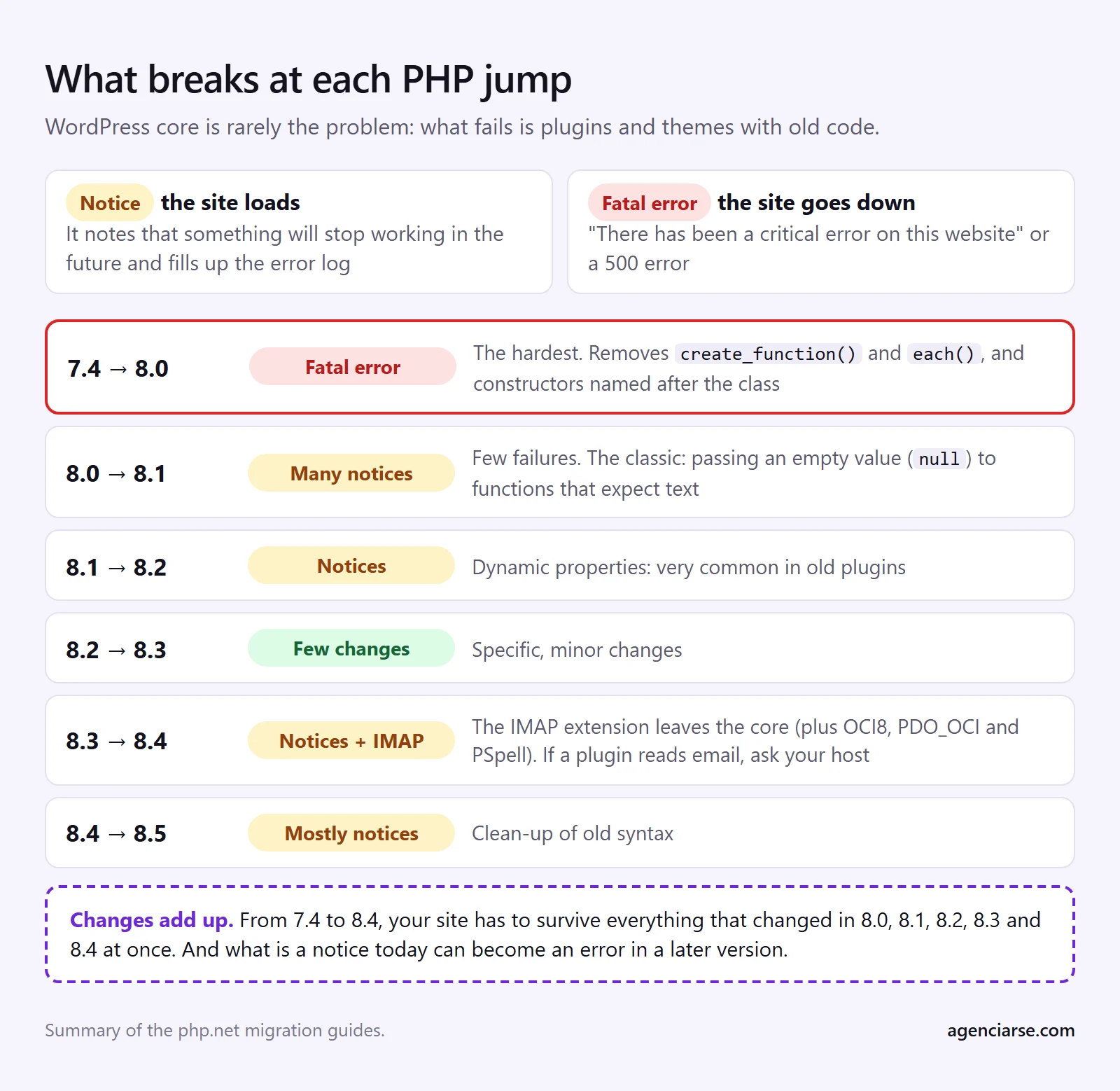
WordPress core is almost never the problem. What fails are plugins and themes with old code. And not everything PHP "complains about" breaks the site:
- A deprecation notice breaks nothing. PHP keeps working and notes that something will stop working in the future (PHP manual). It fills the error log, but your site loads.
- A fatal error does break it: you see "There has been a critical error on this website" or a 500 error. It happens when a plugin uses something PHP has removed.
What is a notice today can become an error in a later version. Very briefly, this is how each jump behaves:
- 7.4 to 8.0: the hardest. PHP 8.0 removed functions such as
create_function()andeach(), and stopped treating a method with the same name as its class as a constructor. Old themes and plugins that use these throw fatal errors. - 8.0 to 8.1: many notices, few failures. The most common one in WordPress: passing an empty value (
null) to functions that expect text (php.net). - 8.1 to 8.2: dynamic properties. A plugin that "invents" data on an object without declaring it triggers a notice (php.net). Very common in old plugins, but it is a notice.
- 8.2 to 8.3: few, specific changes (php.net).
- 8.3 to 8.4: notices and removed extensions. As well as new notices, PHP 8.4 moved the IMAP extension out of core (along with OCI8, PDO_OCI and PSpell). If you use a plugin that reads email over IMAP, ask your host whether they install it separately.
- 8.4 to 8.5: clean-up of old syntax, almost all notices (php.net).
If you are coming from 7.4, the riskiest jump is the one to 8.0, whatever version you are heading for.
Step 1: take inventory
Before touching anything, write down what you have:
- Your current PHP version: Tools > Site Health > Info > Server (WordPress.org). On a shop, also in WooCommerce > Status, which shows the "PHP version" and PHP limits (WooCommerce). Take a screenshot of that report: you will use it to compare later.
- Unmaintained plugins. On each plugin's WordPress.org page, look for this notice: "This plugin hasn't been tested with the latest 3 major releases of WordPress". It is the easiest sign that a plugin may fail. If you see it on an important one, find an alternative before changing PHP.
- Premium plugins or plugins bundled with the theme. Check you have the latest version of each, not just of the free ones.
- The admin email. Go to Settings > General and check that the administration address exists and that you read it. If something breaks, WordPress will send you the link to enter recovery mode there (more on this below).
Step 2: update WordPress, the theme and the plugins
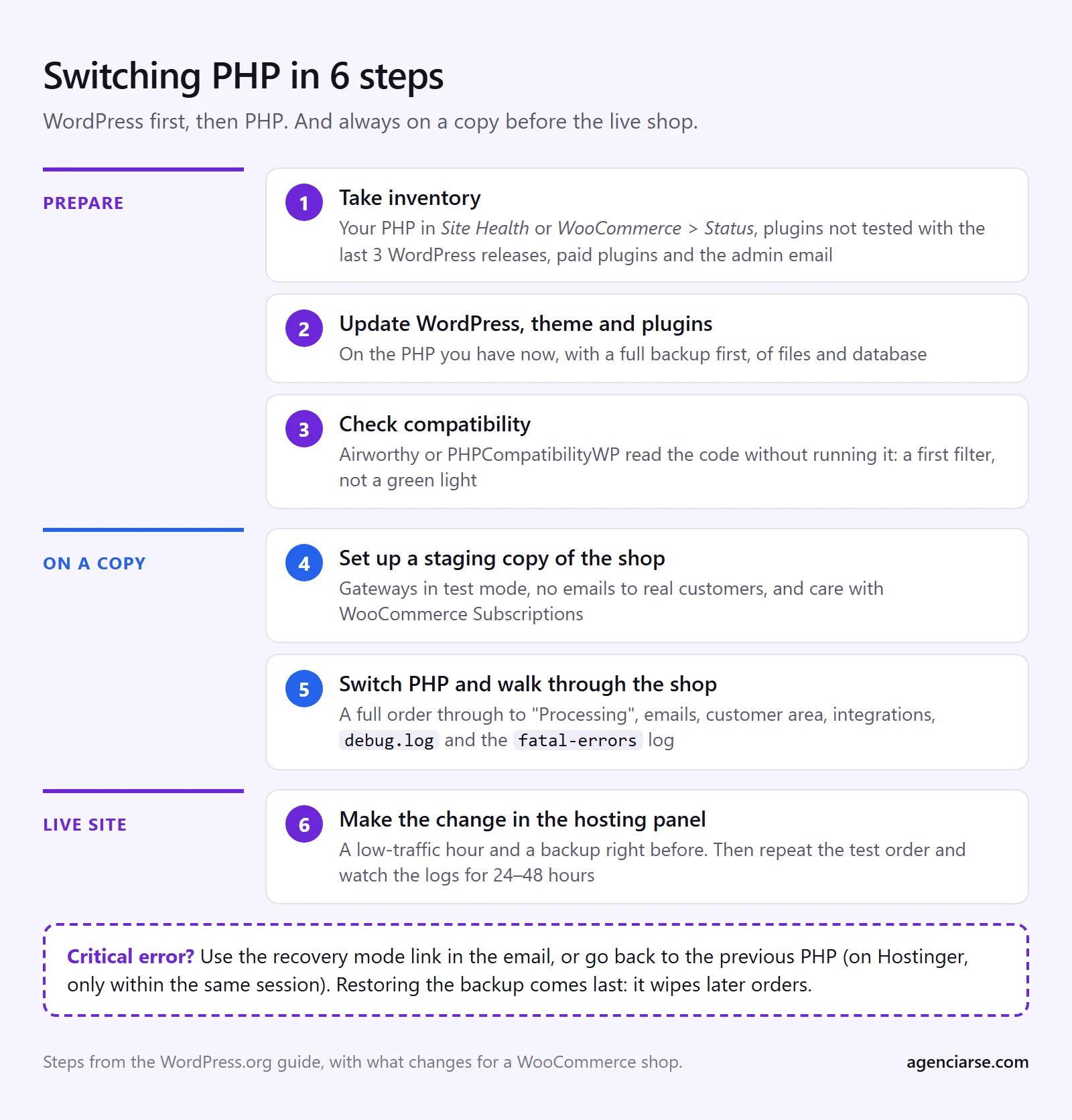
On your current PHP, update everything and check the site works. This is the second step of the official WordPress.org guide, and it makes sense: new plugin versions usually already include the fixes for modern PHP.
Take a full backup first, of files and database. If this also coincides with WordPress 7.2 arriving (8 December), read what changes and how to prepare and do not make both jumps on the same day.
Step 3: check compatibility (and do not fully trust the tools)
There is a trap here. WordPress.org recommends the PHP Compatibility Checker plugin in its guide, but its own page now says it is no longer actively maintained and that it only checks up to PHP 8.0. It will tell you nothing useful about 8.1, 8.2, 8.3, 8.4 or 8.5.
There are alternatives, all with the same limit: they read the code without running it.
- Airworthy (WordPress.org page) checks plugins and theme against PHP 8.0 to 8.6. It is very recent (September 2026) and its author warns that "a "Ready" verdict means no problems were found, not a guarantee".
- If you are technical: PHPCompatibilityWP with PHP_CodeSniffer. WordPress VIP documents the command, for example
phpcs --standard=PHPCompatibilityWP --severity=1 --runtime-set testVersion 8.3- --extensions=php <path>.
Use them as a first filter, not as permission. The only test that counts is changing PHP on a copy of your site and using it.
Step 4: set up a test copy (staging) of your shop
A staging site is a copy of your site at another address, where you can break things without your customers seeing. Many hosts offer it:
- SiteGround has a staging tool in Site Tools (with size limits, and not for Multisite).
- Hostinger includes it from the Business plan. Note: on Hostinger the PHP version in the panel applies to every site on the plan. To use another version on a subdomain or folder, their help explains how to force it with one line in
.htaccess. - IONOS sets the PHP version per domain, so a test subdomain can run a different version. Their Digital Guide explains how to set up staging by hand.
- cPanel and Plesk usually include WP Toolkit with a clone option. According to third-party guides, the clone does not copy the PHP version: check which one the copy has before testing.
What changes when the copy is of a shop
A WooCommerce copy is not just any copy. It carries your orders, your customers and your payment gateway settings. Before testing anything on it (guides such as WebToffee's recommend the same):
- Put the gateways in test mode (Redsys, Stripe, PayPal…) on the staging site, so a test order does not charge real money.
- Stop the copy from emailing real customers. An order or a status change on staging can trigger emails from WooCommerce and other plugins.
- If you use WooCommerce Subscriptions, look at this carefully. Subscriptions remembers the address where it was activated. If the copy is at another URL, it switches to staging mode: renewals become manual and it does not send subscription emails. But if you copy the database and keep the same domain, that mode does not kick in. And the documentation itself warns that the old site "will continue to process real recurring payments" if you do not change its URL or stop its scheduled tasks. It is the easiest way to charge a customer twice.
- And the opposite case, which catches many people out: changing the address of the live shop. If you use the switch to move to another domain or subdomain, Subscriptions sees a URL different from the one it remembers and applies the same logic: it assumes it is a copy and stops charging automatic renewals until someone confirms in the dashboard that this is the real site. It is a safeguard against charging twice, but if nobody reads the notice, renewals go uncollected. If you change domain, check it the same day.
Step 5: switch PHP on the copy and walk through the shop
Change the version on the copy and turn on error logging without showing errors on screen. In wp-config.php (WordPress documentation):
define( 'WP_DEBUG', true );
define( 'WP_DEBUG_LOG', true );
define( 'WP_DEBUG_DISPLAY', false );
Errors go to wp-content/debug.log. This is for staging: WordPress advises against using WP_DEBUG on the live site.
Then use the shop as a customer would, and as you would:
- Home page, categories, a product page and search.
- A complete order: cart, checkout, payment with the gateway in test mode and thank-you page. This is the test you cannot skip.
- The order moving to "Processing". If it stays at "Pending payment", check that the gateway's notification reaches the site.
- The order emails, to the customer and to the shop.
- The customer area: login, registration and "My account".
- Forms for contact and file uploads, if you have them.
- Integrations: invoicing, shipping, ERP, product feeds, analytics.
- Scheduled actions, in WooCommerce > Status > Scheduled Actions. If overdue ("past-due") actions older than a day pile up, WooCommerce says there may be a problem with orders, subscriptions or analytics data.
- WooCommerce's fatal error log, in WooCommerce > Status > Logs, file
fatal-errors: it shows the time, the error and the file that caused it (WooCommerce). Errors the visitor never sees show up there.
Check debug.log too. If there are only notices ("Deprecated"), the site works; note them down and ask the plugin developer. If there are fatal errors ("Fatal error"), the path tells you the culprit: wp-content/plugins/<plugin-name>/. Update it, replace it or wait for the developer to fix it before making the change on the live site.

Step 6: the change on the live site
When the copy works without fatal errors:
- Pick a low-traffic time, when few orders come in.
- Take a backup right before. On a shop, yesterday's backup is not good enough: if you had to restore it, you would lose the last few hours of orders.
- Change the version in your hosting panel. These are the paths according to each one's official documentation:
Panel | Where to change it |
|---|---|
SiteGround | Site Tools > Devs > PHP Manager → pencil "Change PHP version" → choose → Confirm (SiteGround) |
Hostinger | Websites → the site's Dashboard → PHP Configuration → choose → Update (Hostinger) |
IONOS | Menu > Hosting → Manage in the PHP box → choose the domain and version → Save (IONOS) |
cPanel | Software > MultiPHP Manager → tick the domain → PHP Version → Apply (cPanel) |
Plesk | Websites & Domains → domain → PHP → choose version → OK (Plesk) |
- Check the change has applied in Site Health or in the WooCommerce status report.
- Repeat the test order and check the emails.
- Look at the logs again over the next 24–48 hours. Some failures only appear with overnight tasks or real orders. FatLab recommends watching for 48 hours, and it is a good margin.
A note on SiteGround: with Managed PHP, on by default for new accounts, SiteGround raises the version on its own when it considers it mature. If you would rather decide when, pick a fixed version.
If something breaks
The site shows "There has been a critical error"
Since WordPress 5.2, when a plugin or theme causes a fatal error, WordPress emails the administrator a link to enter recovery mode. Once in, the failing plugin is paused only for you: your visitors still see the broken site. From there you can deactivate it.
Two details worth knowing in advance:
- The email goes to the administration address in Settings > General, unless another one has been set (WordPress). That is why we checked it in step 1.
- By default, WordPress sends at most one such email a day. If you delete it by mistake, do not expect another one soon.
If the email does not arrive, the fatal-errors file in WooCommerce > Status > Logs or your host's error.log will tell you which plugin it is (WooCommerce).
Going back to the previous version
The fastest way out is to go back to the PHP you had. WordPress.org explains you can do it yourself in the panel or ask your host. That fixes things in minutes and lets you find the culprit calmly, on staging.
But not every panel lets you:
- Hostinger does not allow downgrading, except within the same session in which you made the change. Their own help says: "Downgrading to lower versions is not possible (except within the same login session if an issue occurs)". Also, the lowest version it offers is 8.2: if you were on 8.1 or older, it no longer appears in the selector. If you are on Hostinger, do not log out until you have checked the shop works.
- On cPanel, if the server administrator has limited the versions, you may not be able to return to the original from MultiPHP Manager. You will have to ask them.
Restoring the backup
This is the last resort. On a site without a shop it costs almost nothing. On a shop, restoring the backup wipes everything that happened afterwards: orders, new customers, stock changes. That is why the backup is taken right before the change, and why it is better to try going back to the previous PHP version first.
Frequently asked questions
Can I jump straight from 7.4 to 8.3 or 8.4?
We have not found an official recommendation that requires going version by version. What is documented is that incompatible changes add up: if you jump from 7.4 to 8.4, your site has to pass everything that changed in 8.0, 8.1, 8.2, 8.3 and 8.4 at once. What matters is not the number of jumps but testing the target version on staging.
How long will the site be down?
The change in the panel takes minutes, according to Hostinger and IONOS. The real time goes into preparing the copy and testing.
Will my site be faster?
We will not promise a number: we have not found reliable speed data that applies to any site. If speed worries you, that is a different job.
What if my host only offers old versions?
If your host does not have PHP 8.3 or higher, the problem is no longer your site. Consider moving host.
WooCommerce shows me a notice about the PHP version. What does it mean?
Since WooCommerce 11.3, shops on PHP 7.4 or 8.0 see a notice in the dashboard. They will be able to update up to 11.5; from 11.6 (February 2027) they will need PHP 8.1 or higher (WooCommerce). Also, older versions only get fixes for the most serious security issues. It is a clear sign that it is time to plan the change.
What now
Three things, in this order: check which PHP and which WordPress you have; update everything and see which plugins have not been touched in years; and test the change on a copy, with a complete order, before doing it on the live shop. With five weeks ahead there is plenty of time if you start this week with the inventory and the updates, and keep the change on the live site for before the last two weeks of December.
If you would rather not do it yourself, at AGENCIA RSE the PHP change is part of WordPress maintenance: we set up staging, test the shop on the new version and check the checkout afterwards. But with this guide and a quiet afternoon, you can do it yourself.
Reviewed on 24 November 2026. Hosts and plugins change often: if you see something out of date, write to us and we will fix it.